How to use phone mic and camera on PC?
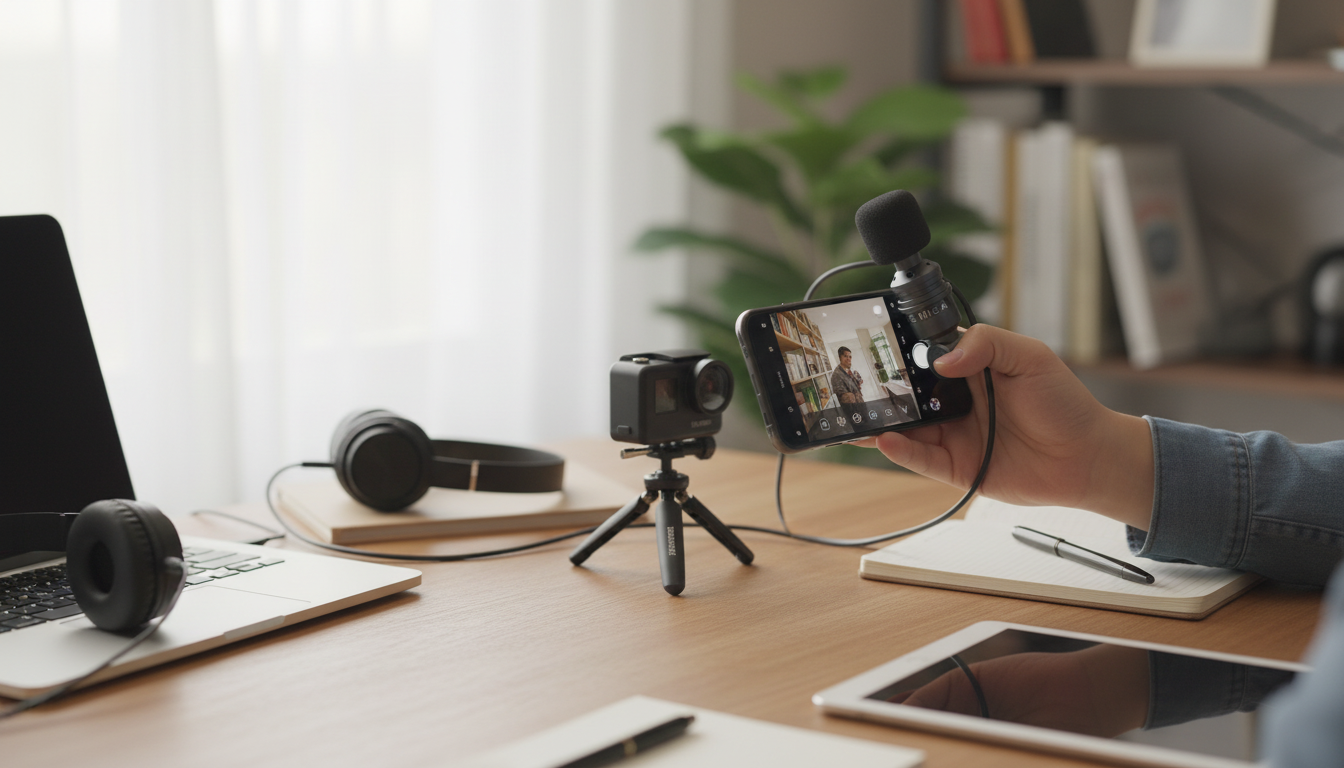
Using your phone as a mic and camera on a PC is a practical way to upgrade audio and video without buying a dedicated webcam or USB microphone. The cleanest setup depends on whether you need better sound, better video, or both, plus whether you want a wired connection (usually more stable) or wireless (more flexible).
Use your phone as a microphone (PC audio input)
Start by deciding how you’ll route the audio: USB, Wi‑Fi, or Bluetooth. USB is typically the most reliable and lowest-latency option for calls, streaming, and voice recording. After connecting, select the phone-based input in your Windows sound settings (or your app’s audio settings) and do a quick level test to avoid clipping.
For clearer results, place the phone 6–12 inches from your mouth, point the mic toward you, and reduce room echo by moving away from bare walls. If you’re recording, monitor with headphones to prevent feedback.
Use your phone as a webcam (PC video input)
To use your phone camera on your PC, choose a webcam app or a platform feature that supports a phone as a camera source. Connect via USB or Wi‑Fi, then select the phone camera as the video device inside Zoom, Teams, OBS, Google Meet, or your preferred software. Mount the phone at eye level for a more natural angle, and lock focus/exposure if your app supports it to prevent pulsing brightness.
Use phone mic + phone camera together
If you’re using both, pick one device as the “master” in your meeting/recording app: set the phone as the camera and either the phone or PC as the microphone. Do a short test recording to confirm lip-sync and switch to USB if you notice delay.
For step-by-step options and recommended approaches, visit the full guide: https://ciceras.com/guide-pocket-mini-mic-phone-laptop-camera-audio/.
FAQ
Can I use my phone as a wireless microphone for my PC?
Yes. Many apps can send your phone’s mic audio to your PC over Wi‑Fi, but stability depends on network quality; USB is usually more consistent for important calls or recordings.
Recommended for you










Leave a comment